
This question comes from Daniel at New River CC, he writes;
Hey Andy, I have a apple Powerbook 17 inch laptop and the screen has stopped working. If I connect my old 15-inch Dell monitor to it, I get a picture and can operate the laptop. Is this a lost cause or is there a way to fix it?Well, if the video problem is physical , then it is very difficult to perform the repair. Usually the problem is either the LCD Inverter or the back-light. Both require the
disassembly of the LCD in order to repair. But there is a chance, albiet small, that the problem is software related. Perform the following three sets of instructions to attempt to fix the problem. If these don't work, having the lcd panel replaced/repaired is around $400, and the current price for buying this laptop, used, is also around $400.
You make the call.
Please note that these directions are for the 17 inch Apple Powerbook. Exact directions for other computers may be different. You should go the support pages of your computer's manufacturer, to get the correct directions for your computer.1. Restore from disc.
A. Start the computer from the restore disc. This disc came with your computer and is labeled Software Install and Restore Disc.
B. Find the Install or Restore disc that came with the computer. Insert the Software Install and Restore disc into your CD/DVD drive.
C. Once it's off, hold down the C key on the keyboard and start up your computer. This will start up the computer from the Software Install and Restore disc instead of your hard drive.
D. If you see video when started up from disc, you may have corrupted software. You can use the
Archive and Install feature of the Mac OS X installer to reinstall. This kind of installation gives you a fresh version of Mac OS X, but you don't lose any data from the computer as your old information is all archived.
2. Reset the PRAM, which stands for parameter ram.
PRAM stores system information and device settings so that they are easily accessible to the computer's operating system. Your computer's PRAM will be reset to the default values. You will probably have to reset your time and date after this operation.
A. Shut down the computer.
B. Locate the following keys on the keyboard: Command, Option, P, and R. You will need to hold these keys down simultaneously in step D.
C. Turn on the computer.
D. Press and hold the Command-Option-P-R keys. You must press this key combination before the gray screen appears.
E. Hold the keys down until the computer restarts and you hear the startup sound for the second time.
F. Release the keys.
3. If resetting PRAM does not resolve an issue, resetting the
PMU is the next (third) step. PMU stands for Power Management Unit, which is a computer chip, and controls backlighting, hard disk spin down, sleep and wake, some charging aspects, trackpad control, and some input/output as it relates to the computer sleeping. Apple warns to only perform a PMU reset on the computer if all else fails. To reset the PMU;
A. If the computer is on, turn it off.
B. Reset the power manager by simultaneously pressing and then releasing Shift-Control Option-Power on the keyboard. Do not press the fn (Function) key while using this combination of keystrokes.
C. Wait 5 seconds.
D. Press the Power button to restart the computer.
- Andy


 This may sound like a simple question, but not necessarily. It's no longer acceptable to say, "I have Windows XP", or "I have OSX". Many times you have to know which revision you have in order to know if certain software works on your computer. Here's how you find out.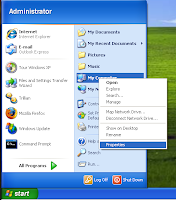
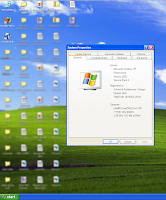 - as shown in picture at right.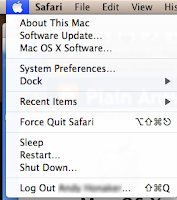
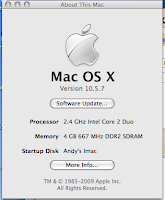
 Subscribe to RSS Feed

